How it works
Connect, talk, and check it on the board
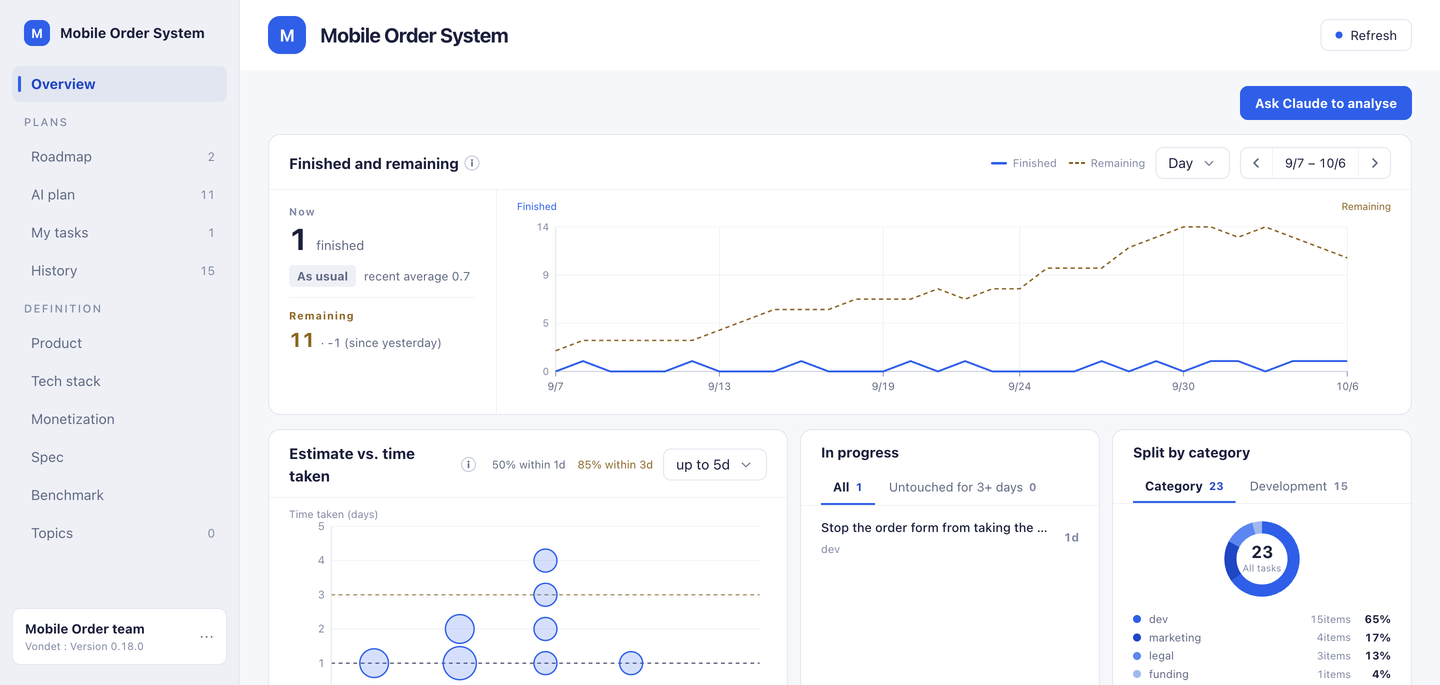
Vondet is a planning board your AI writes to over MCP (the common way an AI uses outside tools). You read it, and tell the AI what you want changed. This page follows the path from signing up, through the first conversation, to opening the board again the next day — in screenshots.
The board shown is an example (someone building a mobile ordering system on their own; the screens are in English).
What it is
Your plan builds up on one board. The AI you connect writes the content: goals, tasks, the reasoning behind them, and the decisions made. You read the board and tell the AI where you think it is wrong. However much you talk, there is still one plan.
Sign up
You sign in with a link we email you, or with Google or GitHub — there is no password to set or remember. Once you sign in, one board is ready for you.
Connect — the Claude app (claude.ai or desktop)
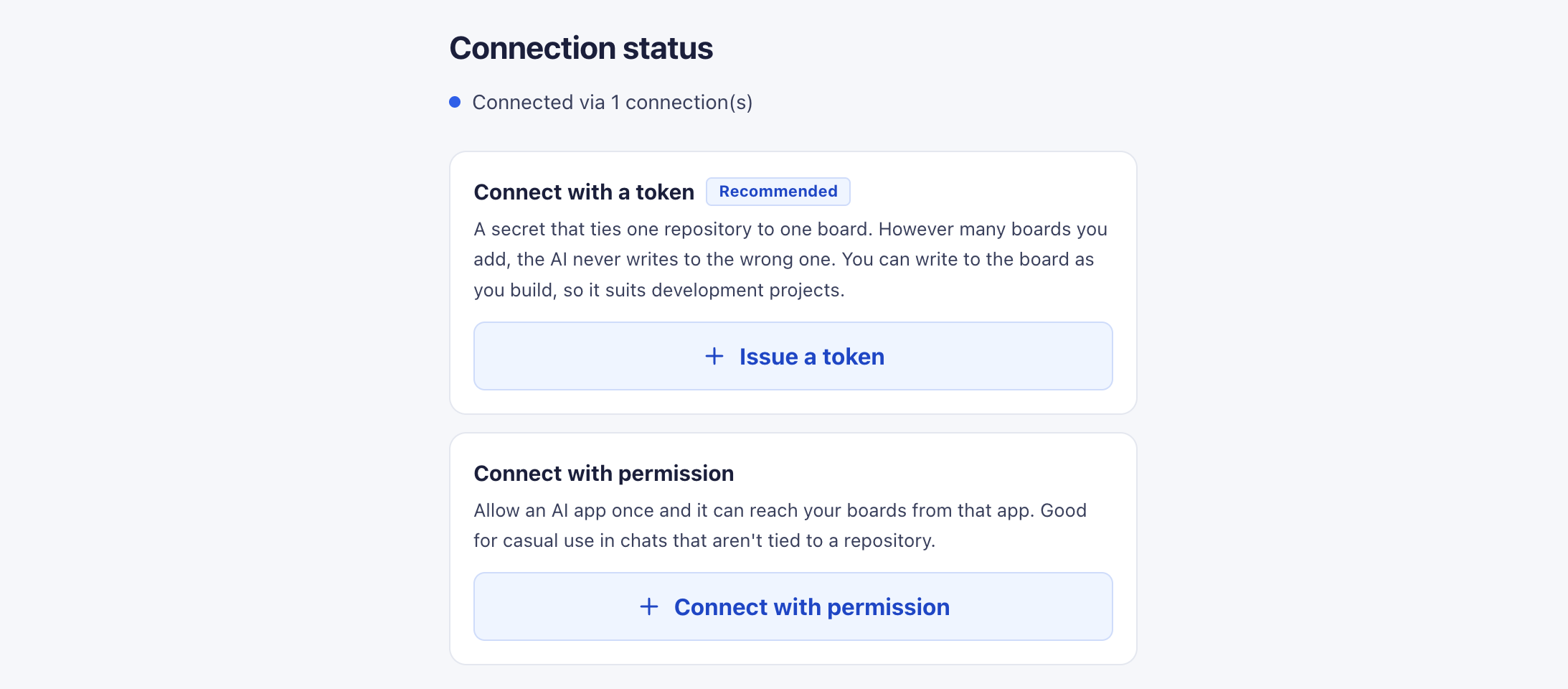
There are two ways to connect. The Claude app (claude.ai or desktop) connects by approval, and Claude Code in a repository connects with a token. With approval, you just approve on the approval page — there is no value to copy or keep. With a token, you issue a secret and register it in your AI's settings. This section covers approval; the next one covers tokens.
Register it in either claude.ai or the desktop app and it works in both. You can revoke this permission later under Manage connections.
- On your board's “Connect your AI” screen, choose Connect with permission and copy the connection URL it shows.
- In the Claude app's settings, add that URL as a connector.
- An approval page opens. Under “Which boards this app can reach”, choose which boards the AI can reach, then approve.
- When the connect screen shows the connection in use, you are done.

Connect — Claude Code
In a repository, connect with a token. A token reaches the one board you choose when you issue it, so each repository can keep its own board. To reach other boards too, add them later under Manage connections (selected boards, or all your boards). You can revoke a token under Manage connections, and it takes effect right away.
- On your board's “Connect your AI” screen, press Issue a token, then choose a name and the board it reaches.
- Paste the one line it shows into a terminal in your repository folder and run it.
- Open a new session and the board's tools are available (a session already open has not loaded them yet).
The line to paste (an example — your issued token goes where ⟨token⟩ is)
claude mcp add --transport http --scope local vondet-mobile-order-system https://vondet.com/api/mcp --header "Authorization: Bearer ⟨token⟩"Do not show the token to anyone. Whoever has it can write to that board.
The first step — what to say to your AI
Once connected, talk the way you normally would. A first message can look like this:
- “Lay out the plan for this repository on the board”
- “I want to decide what to do today. Look at the board and suggest an order”
- “Write down on the board what is missing before we can set a price”
Lay out the plan for this repository on the board. The goal is something I can hand to a café owner.
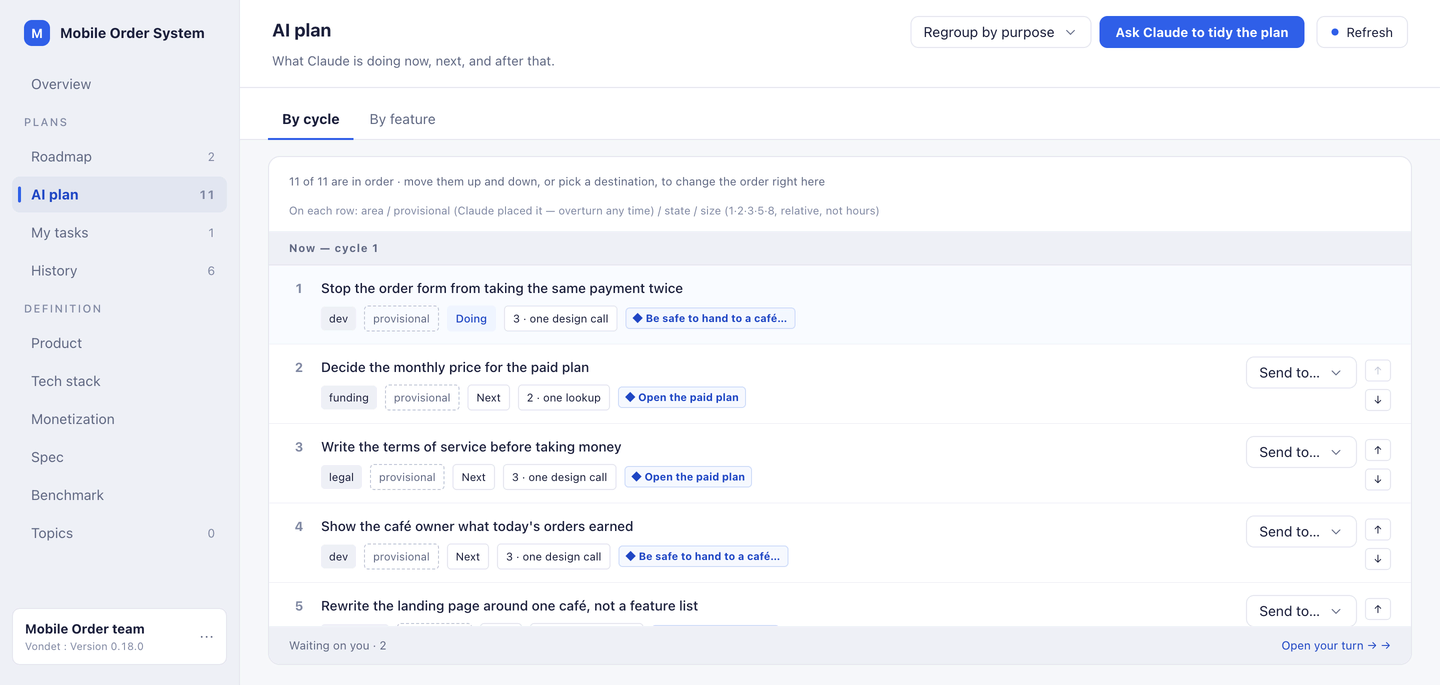
I read the README and the recent commits. I set up two goals (open the paid plan; be safe to hand to a café owner) and placed 11 tasks across now, next and after that. First up is stopping the order form from taking the same payment twice — there is a note that a double tap on confirm charged twice.
I want the terms of service before payments.
I moved “Write the terms of service before taking money” up to third in now, and wrote the reason: not to charge anyone while refunds and downtime are written down nowhere.
Everyday use
From the second day on, you do not explain the plan again at the start of every conversation.
- In the next session, you pick up from the boardSay “let's pick up where we left off”, and you can carry on from the board — how far things got, and what comes next.
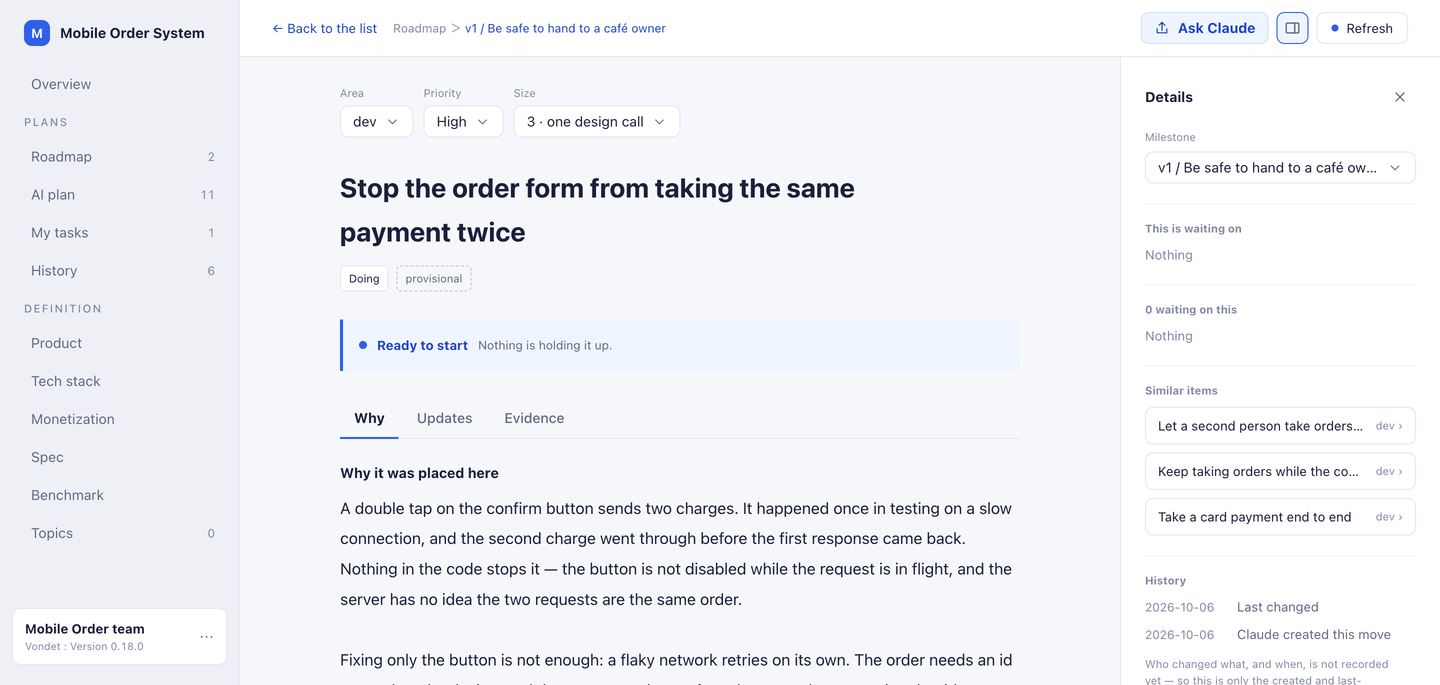
- Decisions keep their reasons and what would overturn themOpen a task to read, in full, why it was placed there and what would make it worth rethinking. Decisions stay in the decision log.
- Close things when they are doneSay it is done, and you can have the AI close the task and record how it was checked. Closed tasks move to History.
- See what the AI changed since you last lookedWhen you open the board, what the AI added or changed since your last visit is gathered above the overview.
Let's pick up where we left off.
I read the board. In progress: stopping the order form from taking the same payment twice. What remains is having the server refuse the same order. After that comes writing the terms of service.
I checked that two taps only charge once. Close it.
Closed. I recorded what you checked as the evidence.
How board content is handled
By default, board content is not used to improve the product. Only when you turn on “Help improve the product” in account settings do we anonymize board content and may use it. We never sell content to third parties.
Pricing
- Free: 1 board. No limit on the number of milestones, moves, or decisions.
- Pro: for anyone who needs more than one board.
Next step
Start with one free board, and have your AI lay out the plan for a project you already have.